01
Microphone Channel
Select USB interface or direct line-in. Maintain input gain between -12dB and -6dB. This avoids digital clipping during vocal peaks.
RATE: 48.0 kHz / 16-bit
Recording desktop workflows requires precision. Frame synchronization prevents stutter. Clean audio input ensures voice clarity.
This guide details the internal capture engine. Configure regions. Calibrate frame rates. Route signals cleanly.
Precision begins with bounding box coordinates. Open the Screen Record tab. Choose between Full Screen, Window Select, or Custom Area. Custom Area creates a resizable bounding box. Lock coordinates to standard aspect ratios. 16:9 remains the global standard. Use 1920 by 1080 pixels for presentations.
Avoid arbitrary window drag shapes. Odd horizontal dimensions cause codec scaling artifacts. Keep widths divisible by eight. This aligns with standard macroblock boundaries. If software crashes during driver initialization, review the Windows installation and setup protocol.
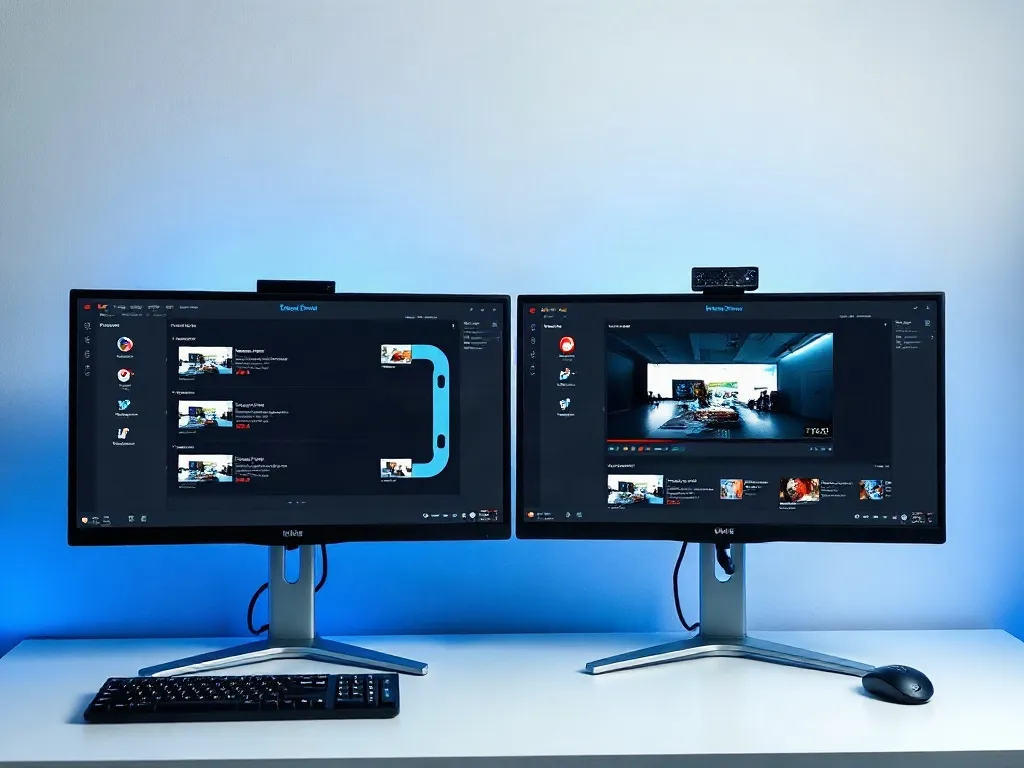
Dual-monitor systems require explicit display selection. The utility detects secondary displays as virtual desktops. Assign the capture frame to display index one. This eliminates accidental desktop spillover during live slide switches.
"Never crop slides dynamically during capture. Set fixed pixel dimensions before triggering the recorder."
Dual-channel capture balance. Microphone input and internal loopback synchronization.
Select USB interface or direct line-in. Maintain input gain between -12dB and -6dB. This avoids digital clipping during vocal peaks.
Capture operating system sounds alongside presenter audio. Enable Stereo Mix device in sound control panel. Test browser stream output.
Prevent acoustic drift across extended recordings. Set hardware buffer size to 256 samples. For network stream captures, review video stream capture.
Slide presentations do not always require maximum frame counts. Static decks record cleanly at 30 FPS. High-motion software demonstrations require 60 FPS. Ensure display refresh matches recording multiples.
Audience attention tracks the cursor. Enable the pointer capture checkbox. Disable Windows hardware acceleration on pointer icons to prevent invisible mouse bugs during software demos.
Measured data for typical 45-minute technical presentation recordings on standard UK enterprise desktop configurations.
For automated multi-clip pipelines, check batch processing and queues. For rendering errors, visit error resolution.
Establish consistent capture resolutions across your documentation library. Maintain balanced audio gains. Ensure zero dropped frames across all desktop recordings.